

SuiteCRM email campaigns are powerful in theory, but when they do not send, troubleshooting can feel like a scavenger hunt.
- The email template looks fine.
- The target list looks fine.
- The campaign says it is scheduled.
- The scheduler says it ran.
- But nothing leaves the system.
Or worse, the campaign sits in pending_send, nothing appears in the Email Queue, and there are no obvious errors in the log.
If you have worked with SuiteCRM campaigns for any length of time, you already know the feeling. There are a lot of moving parts, and the system does not always give you clear feedback when one of them is missing.
This article walks through the most common reasons SuiteCRM email campaigns do not send, including some newer SuiteCRM 8 issues around scheduler jobs, Symfony Messenger, and the way campaign “From” addresses are selected.
1. The SuiteCRM Scheduler Cron Is Not Running
This is still one of the first places to check.
SuiteCRM does not send campaign emails immediately just because you created a campaign. Campaign email is processed through scheduled jobs. If the scheduler cron is not running, the campaign can look ready, the send can appear scheduled, and nothing will actually happen.
The confusing part is that the required cron command depends on whether you are running SuiteCRM 7 or SuiteCRM 8.
SuiteCRM 7 / Legacy Scheduler Cron
In SuiteCRM 7, the scheduler is usually run through the legacy cron.php file.
The cron command shown at the bottom of the Admin → Schedulers page may look something like this:
* * * * * cd /path/to/suitecrm; php -f cron.php > /dev/null 2>&1

On many cPanel or shared-hosting setups, you may need to use the full path to the correct PHP binary, for example:
* * * * * cd /home/USERNAME/public_html/crm; /usr/local/bin/php -f cron.php > /dev/null 2>&1
In older SuiteCRM campaign setups, the campaign-related scheduler jobs are typically:
Run Nightly Mass Email Campaigns
Run Nightly Process Bounced Campaign Emails
You may also need:
Check Inbound Mailboxes
especially if you are using bounce handling or inbound email processing.
The key SuiteCRM 7 checks are:
- Is cron.php running?
- Is it running as the correct server user?
- Are the legacy campaign scheduler jobs active?
- Are the jobs due to run?
- Do the SuiteCRM logs show scheduler or PHPMailer errors?
SuiteCRM 8 Scheduler Cron
SuiteCRM 8 uses the Symfony console command instead of the old cron.php approach.
The scheduler command is:
bin/console schedulers:run
A cPanel-style SuiteCRM 8 cron job may look like this:
* * * * * /usr/local/bin/php -q /home/USERNAME/public_html/crm/bin/console schedulers:run > /dev/null 2>&1

For testing, do not send output to /dev/null right away. Log it first:
* * * * * /usr/local/bin/php -q /home/USERNAME/public_html/crm/bin/console schedulers:run >> /home/USERNAME/suitecrm-scheduler.log 2>&1
Then check the log:
tail -100 /home/USERNAME/suitecrm-scheduler.log
Once confirmed working, you can switch back to:
* * * * * /usr/local/bin/php -q /home/USERNAME/public_html/crm/bin/console schedulers:run > /dev/null 2>&1
You can also test manually from the SuiteCRM root:
./bin/console schedulers:run -vvv
The verbose output is useful because it shows which scheduler jobs SuiteCRM actually considers valid and due to run.
SuiteCRM 8.9+ New Campaign Scheduler Jobs
This is a major SuiteCRM 8 campaign gotcha.
In SuiteCRM 8.9 and newer, the newer campaign/email marketing flow may rely on newer scheduler jobs in addition to the older legacy campaign jobs.
Depending on your SuiteCRM version, look for scheduler jobs such as:
Queue Campaign Emails
Send Campaign Emails
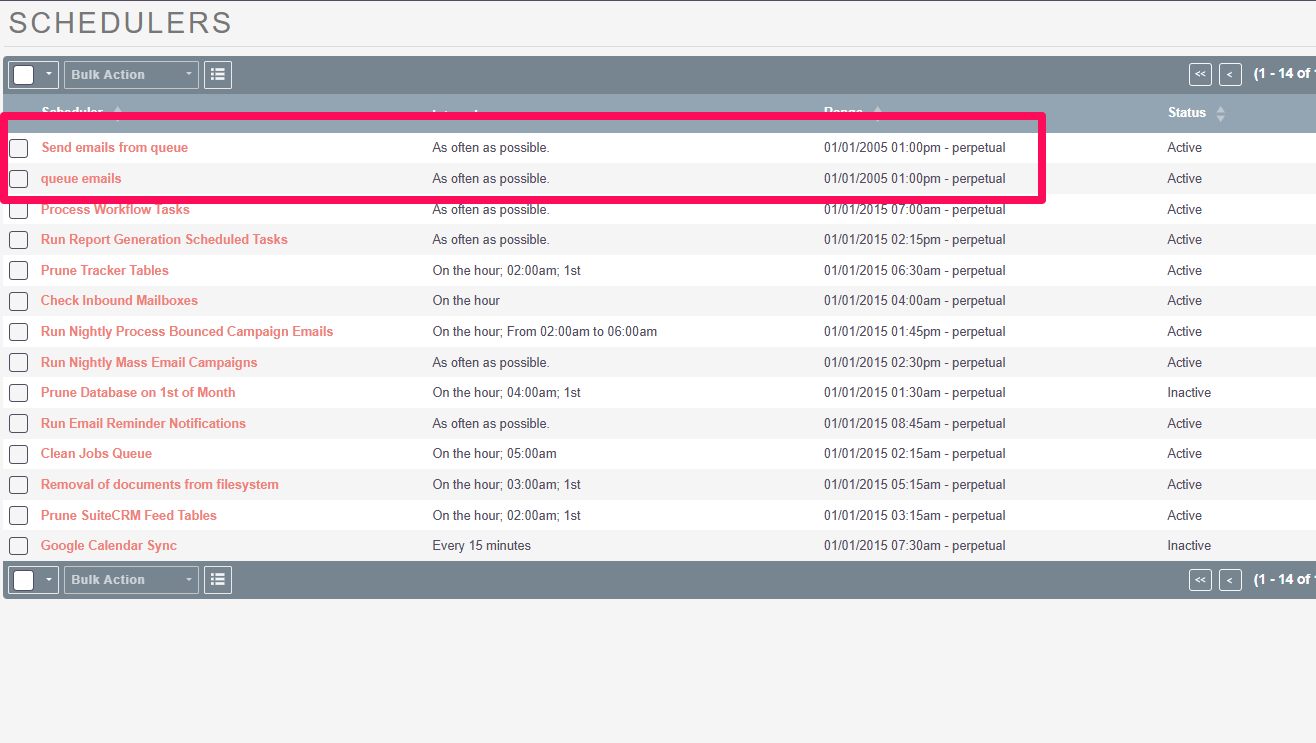
or similarly named email marketing queue/send jobs.
These are different from the older legacy jobs such as:
Run Nightly Mass Email Campaigns
Run Nightly Process Bounced Campaign Emails
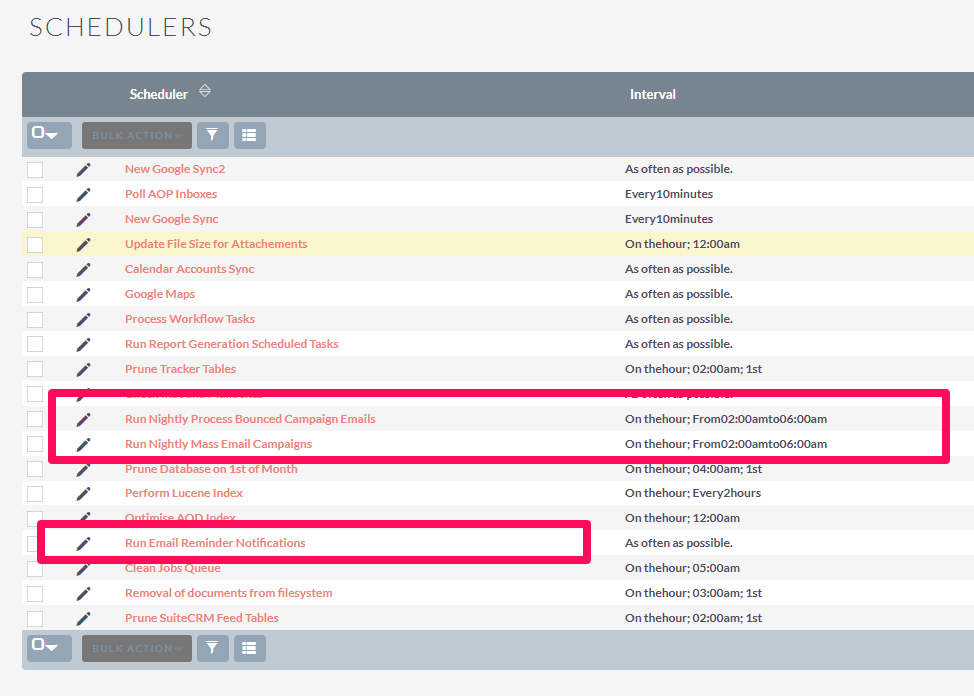
This matters because cron can be running successfully, and the scheduler command can report success, but your campaign can still sit in:
pending_send
with nothing created in the Email Queue.
That is exactly the kind of failure that makes SuiteCRM campaigns difficult to troubleshoot. The cron is running, but the specific scheduler job needed by the new campaign flow is missing, inactive, or not due to run.
To check this, go to:
Admin → Schedulers
Confirm that the newer campaign queue/send jobs exist and are active.
For testing, set the new campaign queue/send jobs to run as often as possible. Then run:
./bin/console schedulers:run -vvv
Look carefully at the output. If you only see the older jobs but not the newer campaign queue/send jobs, the new SuiteCRM 8 campaign system may not have what it needs to move an email send from:
pending_send
to actual Email Queue records.
If the new scheduler jobs are missing after an upgrade, run repair/rebuild and confirm the upgrade properly created the required scheduler records.
SuiteCRM 8.10+ Messenger Worker
In SuiteCRM 8.10 and newer, SuiteCRM also introduced Symfony Messenger for async background tasks.
This means some SuiteCRM 8 background work may require a separate Messenger worker in addition to the normal scheduler cron.
The regular scheduler cron is:
bin/console schedulers:run
The Messenger worker is:
bin/console messenger:consume internal-async
A cPanel-style Messenger cron may look like this:
* * * * * /usr/local/bin/php -q /home/USERNAME/public_html/crm/bin/console messenger:consume internal-async --time-limit=55 --memory-limit=256M > /dev/null 2>&1

For testing, log it first:
* * * * * /usr/local/bin/php -q /home/USERNAME/public_html/crm/bin/console messenger:consume internal-async --time-limit=55 --memory-limit=256M >> /home/USERNAME/messenger-cron.log 2>&1
Then check:
tail -100 /home/USERNAME/messenger-cron.log
On a VPS, Supervisor or systemd is usually a better production method for Messenger. On cPanel-style hosting, a once-per-minute cron with a short time limit is often the practical workaround.
Quick Scheduler Summary
For SuiteCRM 7:
- Use cron.php
- Confirm legacy campaign jobs are active
- Confirm bounce processing jobs if using bounce handling
- Confirm cron runs as an allowed user
For SuiteCRM 8:
- Use bin/console schedulers:run
- Confirm cron runs as an allowed user
- Confirm campaign scheduler jobs exist and are active
For SuiteCRM 8.9+ new campaign functionality:
- Confirm new campaign queue/send scheduler jobs exist
- Confirm they are active and due to run
- Do not rely only on older legacy campaign jobs
For SuiteCRM 8.10+:
- Run bin/console schedulers:run
- Run bin/console messenger:consume internal-async
- Confirm both cron jobs run as the correct server user
The key lesson is simple: a successful cron command does not prove the campaign system is configured correctly. You need the right cron command, the right server user, and the right scheduler jobs for your SuiteCRM version.
2. The Cron Job Is Running as the Wrong Server User
This is a classic SuiteCRM failure point.
You may have a cron job configured, and it may appear to run, but SuiteCRM can reject it if it is being run by an unauthorized system user.
For example, if you manually run:
php ./bin/console schedulers:run -vvv
as root, SuiteCRM may return something like:
ERROR: The cron job is being run by an unauthorized user.
Please ensure that the cron job is run by one of the following users:
pablostevens
Current user: root
SuiteCRM checks the allowed cron users from the config.php file.
Look for the cron section in config.php, for example:
'cron' => array(
    'allowed_cron_users' => array(
        0 => 'pablostevens',
    ),
),
The fix is not usually to add root. The better fix is to run the cron job as the correct cPanel/web account user.
If the cron is added inside the cPanel account, it will usually run as that account user.
If you are using root’s crontab, run the command as the correct user:
* * * * * su -s /bin/bash -c "/usr/local/bin/php -q /home/USERNAME/public_html/crm/bin/console schedulers:run > /dev/null 2>&1" USERNAME
Running SuiteCRM cron as root can also create root-owned cache or log files, which can cause permission problems later.
3. The New SuiteCRM 8 Campaign Scheduler Jobs Are Missing or Not Running
This one is very easy to miss, especially on upgraded SuiteCRM 8 systems.
Older SuiteCRM campaign setups may have scheduler jobs such as:
Run Nightly Mass Email Campaigns
Run Nightly Process Bounced Campaign Emails
Those are legacy campaign-related jobs.
However, newer SuiteCRM 8 campaign functionality may also rely on newer scheduler jobs such as:
Queue Campaign Emails
Send Campaign Emails
or similarly named email marketing queue/send jobs, depending on your SuiteCRM version.
This matters because cron can be running successfully, and the scheduler can report success, but your campaign can still remain stuck in:
pending_send
with nothing created in the Email Queue.
A useful command-line check is:
./bin/console schedulers:run -vvv
Look carefully at the scheduler names in the output.
If you only see older jobs such as:
Run Nightly Mass Email Campaigns
but do not see the newer queue/send jobs, the new campaign system may not have the scheduler it needs to move an email send from:
pending_send
to actual Email Queue records.
In SuiteCRM 8.9 and newer, check:
Admin → Schedulers
Look for the newer campaign queue/send jobs, confirm they are active, and for testing set them to run as often as possible.
This was one of the most important real-world issues I found while testing SuiteCRM 8 campaigns: cron was running, the scheduler command worked, but the specific scheduler job required by the new campaign flow was not running.
4. SuiteCRM 8 Messenger Worker Is Not Configured
In SuiteCRM 8.10 and newer, SuiteCRM introduced async tasks using Symfony Messenger.
This means some background processing may depend on a separate Messenger worker in addition to the traditional scheduler cron.
So now, on some SuiteCRM 8 systems, it may not be enough to say:
My scheduler cron is running.
You may also need to confirm that the Messenger worker is configured and running.
A cPanel-style Messenger cron may look like this:
* * * * * /usr/local/bin/php -q /home/USERNAME/public_html/crm/bin/console messenger:consume internal-async --time-limit=55 --memory-limit=256M > /dev/null 2>&1
For testing, log the output first:
* * * * * /usr/local/bin/php -q /home/USERNAME/public_html/crm/bin/console messenger:consume internal-async --time-limit=55 --memory-limit=256M >> /home/USERNAME/messenger-cron.log 2>&1
Then check:
tail -100 /home/USERNAME/messenger-cron.log
You can also manually test from the SuiteCRM root:
/usr/local/bin/php -q ./bin/console messenger:consume internal-async --time-limit=60 --memory-limit=256M -vvv
In production, Supervisor or systemd is generally a better long-term way to run Messenger workers. But on cPanel-style hosting, a once-per-minute cron with a short time limit is often the practical approach.
For SuiteCRM 8.10 and newer, your launch checklist should include both:
bin/console schedulers:run
and:
bin/console messenger:consume internal-async
5. The Campaign Target List Was Added in the Wrong Place
SuiteCRM campaign target-list handling is not intuitive.
In the new SuiteCRM campaign flow, you may need to select the target list in more than one place.
First, you attach the Target List to the campaign header. Then, when creating the actual email send, you select from the target lists already attached to the campaign.
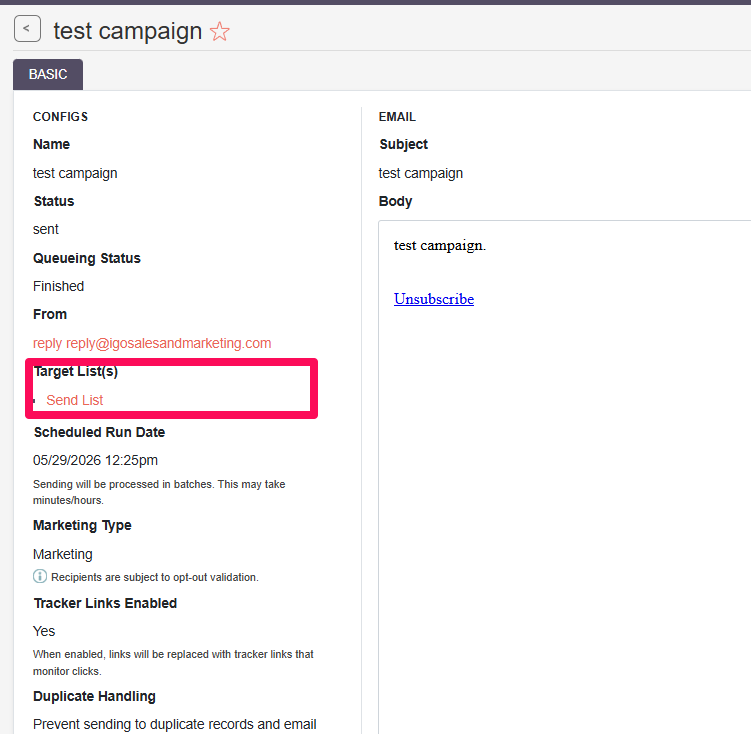
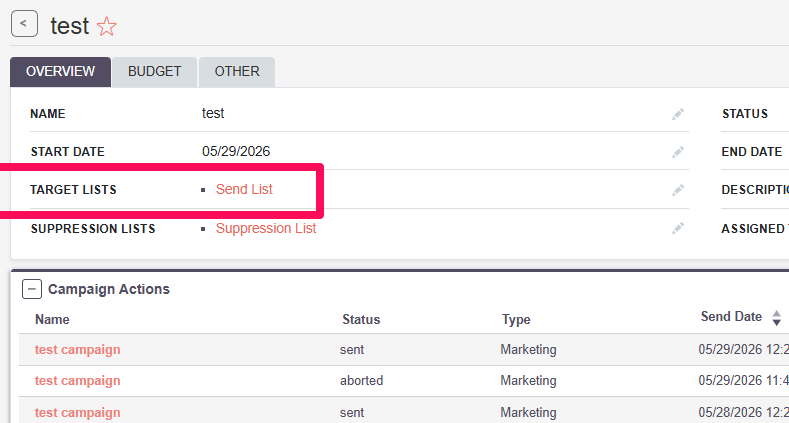
In other words:
Campaign Header Target Lists = the available audience pool for the campaign
Email Send Target Lists = the specific lists used for that send
This explains why a target list may not appear in the send selector even though it exists in SuiteCRM. It may first need to be attached to the campaign.
From a technical perspective, this allows one campaign to contain multiple sends to different subsets of the campaign audience.
For example:
Campaign: Spring Promotion

Campaign-level target lists:
- Customers
- Prospects
- Newsletter Subscribers

Email Send #1:
- Customers only

Email Send #2:
- Prospects only
From a user-experience perspective, it is confusing. Most users reasonably assume:
I selected the target list. Why am I selecting it again?
If your campaign is not sending, confirm the target list is selected both at the campaign level and on the specific email send.
6. The Campaign Is Still in Planning or the Send Was Never Actually Scheduled
Another easy-to-miss issue is the campaign status itself.
In SuiteCRM, it may not be enough to create the campaign, add the target list, create the email send, and set a send date/time.
The campaign header may also need to be changed from:
Planning
to:
Active
Also, setting a date and time on the email send does not necessarily mean the send has actually been scheduled. You may need to press the Schedule button so SuiteCRM changes the send into the correct scheduled state.
So the required gates may look something like this:
Campaign header is Active
+
Target list is attached to the campaign
+
Target list is selected for the specific email send
+
Email template is selected
+
Valid From/outbound email account is selected
+
Send date/time is set
+
Schedule button has been pressed
+
Scheduler/Messenger processes the send
If any one of those gates is missed, the campaign may look complete but not send.
7. The Send Was Scheduled, Aborted, and Is No Longer Editable
SuiteCRM campaign sends can also become difficult to work with after scheduling.
Once you press Schedule, the Email Marketing / Send record may become locked. That part makes some sense: SuiteCRM does not want users changing the audience, template, or send time after a send has potentially been queued or partially processed.
The frustrating part is that if you abort the send, it may not return to an editable draft state.
The practical workaround is:
Do not reuse aborted campaign sends.
Create a new Email Marketing / Send record.
That means:
- Re-select the template
- Re-select the target list
- Re-select the From/outbound account
- Set the date/time
- Press Schedule again
This is another reason SuiteCRM campaigns can feel fragile. A small setup mistake can force you to recreate the send rather than simply editing and rescheduling it.
8. The Campaign “From” Dropdown Is Not Showing What You Think It Is
This was one of the most important findings from testing.
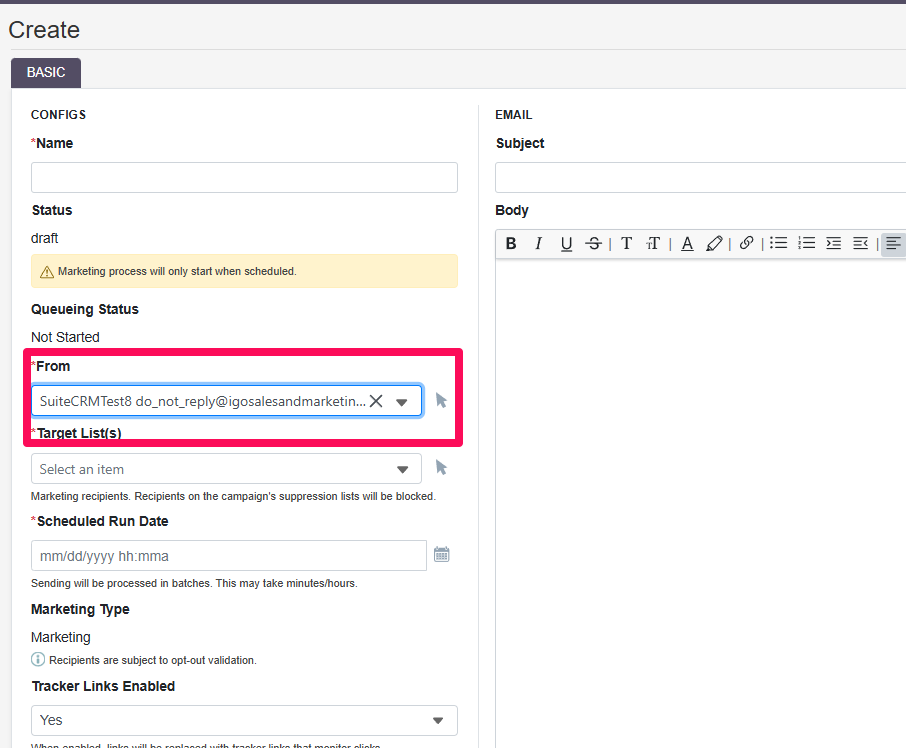
The campaign From dropdown does not necessarily show a simple list of users, and it does not necessarily show the outbound account names.
It appears to show the configured From address associated with outbound email accounts available to the current user.
That distinction matters.
For example, you may have an outbound email account configured for AWS SES. That outbound account may have:
SMTP/auth settings
Owner/access settings
Configured From address
If the configured From address is:
pstevens@example.com
then the campaign From dropdown may show:
pstevens@example.com
But that does not mean SuiteCRM is simply pulling from the current user’s email address. It may be showing the From address configured on an outbound email account.
If you change the configured From address on that outbound account to:
aperez@example.com
then the campaign dropdown may show:
aperez@example.com
The important point is:
The dropdown shows the From identity, not the outbound account name or SMTP username.
So if a campaign fails with:
SugarPHPMailer encountered an error: SMTP Error: Could not authenticate.
check the actual outbound email account behind the selected From address.
A good naming convention helps:
Account Name: AWS SES - Marketing
SMTP Username: [AWS SMTP username]
From Address: marketing@example.com
or:
Account Name: cPanel SMTP - Newsletter
SMTP Username: newsletter@example.com
From Address: newsletter@example.com
Do not assume that because a From address appears in the campaign dropdown, you understand which SMTP credentials are being used.
9. The Selected From Address Is Not Authorized to Send
Closely related to the previous point: even if SuiteCRM lets you select a From address, that does not guarantee the mail server will allow it.
A selected From address must be backed by an outbound account that can authenticate and is allowed to send using that address.
For example:
SMTP account: AWS SES account
Configured From: pstevens@example.com
This may work if AWS SES is verified and authorized to send as that address.
But if you select a From address that is not tied to a working outbound account, or if the SMTP provider rejects that From identity, the send can fail.
Worse, SuiteCRM may give misleading feedback. In testing, a send could appear to report as sent even though the log showed an SMTP authentication failure.
Before using a From address for campaigns, confirm:
- The outbound email account exists
- The current user has access to that outbound account
- The SMTP credentials are valid
- The configured From address is allowed by the mail server
- A real test email arrives
- The SuiteCRM log does not show PHPMailer authentication errors
For campaign sending, use clear, dedicated sender accounts where possible:
marketing@example.com
newsletter@example.com
sales@example.com
This is better than relying on arbitrary user addresses or poorly labelled outbound accounts.
10. Nothing Is Created in the Email Queue
When troubleshooting SuiteCRM campaigns, the first question should not be:
Did the email arrive?
The first question should be:
Did SuiteCRM create anything in the Email Queue?
This matters because SuiteCRM campaign sending happens in stages.
A simplified flow looks like this:
1. Campaign and email send are configured
2. SuiteCRM generates Email Queue records
3. Scheduler processes the queue
4. PHPMailer attempts SMTP delivery
5. Mail server accepts or rejects the message
6. Recipient server delivers, filters, rejects, or bounces it
If nothing appears in the Email Queue, then the problem is not your recipient’s spam folder yet. It may not even be SMTP yet.
It means SuiteCRM has not generated the outbound campaign messages.
That points back to campaign setup, scheduler-job availability, target-list eligibility, or status conditions.
Check:
- Campaign header status
- Email send status
- Whether the send is stuck in pending_send
- Whether the correct queue/send scheduler jobs exist
- Whether the target list is selected in both required places
- Whether recipients are eligible
- Whether recipients are opted out or invalid
- Whether the selected From address maps to a valid outbound email account
A successful scheduler run does not necessarily mean your campaign was eligible to send. It can mean the scheduler ran, found nothing that matched its queueing criteria, and exited without error.
11. The Target List Has No Eligible Recipients
This is one of those “SuiteCRM is doing exactly what it is supposed to do” issues.
The target list may exist. It may even be attached to the campaign. But SuiteCRM may still have no eligible recipients to send to.
This can happen if:
- The target list is empty
- The recipient has no email address
- The email address is opted out
- The email address is marked invalid
- The recipient is on a suppression list
- The recipient has already received that campaign email
For testing, create the simplest possible list:
Target List Name: Test Campaign List
Type: Default
Members: 1 contact — yourself
Suppression List: none
Then confirm the test contact has a valid, non-opted-out email address.
Also remember that SuiteCRM tries to avoid sending the same campaign email to the same recipient multiple times. For repeated testing, you may need to use a new send record, clear test entries where appropriate, or use a fresh recipient/list.
12. The Outbound SMTP Account Is Not Configured Correctly
If SuiteCRM reaches PHPMailer and attempts to send, failures often show up in the SuiteCRM log.
For example:
SugarPHPMailer encountered an error: SMTP Error: Could not authenticate.
That means SuiteCRM did try to send, but SMTP authentication failed.
Common causes include:
- Wrong SMTP username
- Wrong SMTP password
- Wrong SMTP host
- Wrong port
- Wrong SSL/TLS setting
- SMTP authentication disabled at the provider
- App password required
- Selected From account is not the account you think it is
Typical SMTP combinations:
Port 465 = SSL
Port 587 = TLS / STARTTLS
Also, many cPanel and hosted mail systems require the full email address as the SMTP username:
newsletter@example.com
not just:
newsletter
Always test the actual outbound account being used by the campaign, not just the system account.
13. Bounce Handling Is Missing or Misconfigured
Bounce handling usually does not stop the first send, but it can create confusion around campaign tracking and delivery results.
SuiteCRM can use a dedicated bounce handling mailbox to receive and process delivery failure notifications.
For example:
Send From: newsletter@example.com
Bounce Account: bounce@example.com
The bounce handling account should be configured as an inbound email account and selected appropriately in the campaign/email marketing setup.
A bounce account can exist but still fail if SuiteCRM cannot connect to the mailbox. Test the inbound connection, not just the record.
I cover this in more detail in my dedicated article on SuiteCRM bounce handling:
14. The Mail Server Is Rejecting or Limiting the Messages
Sometimes SuiteCRM is configured correctly, but the mail server refuses to send.
This can happen because of:
- Sender address restrictions
- Rate limits
- Shared hosting limits
- SMTP relay restrictions
- SPF/DKIM/DMARC alignment issues
- The authenticated account is not allowed to send as the selected From address
Just because one test email sends does not mean the server will allow hundreds or thousands of campaign emails.
For serious campaigns, especially larger lists, consider using a proper sending provider rather than a basic cPanel mailbox.
Practical Troubleshooting Order
When a SuiteCRM campaign is not sending, I would troubleshoot in this order:
- Check whether the campaign send is actually scheduled.
- Confirm the campaign header is Active.
- Confirm the target list is selected at the campaign level.
- Confirm the target list is selected again on the email send.
- Confirm the target list has eligible recipients.
- Confirm the selected From address maps to a valid outbound email account.
- Send a test email and check the SuiteCRM log.
- Check whether anything appears in the Email Queue.
- Confirm the scheduler cron is running.
- Confirm the cron is running as an allowed cron user from
config.php. - Confirm the newer SuiteCRM 8 queue/send campaign scheduler jobs exist and are active.
- Confirm the Messenger worker is running if using SuiteCRM 8.10+.
- Check the SuiteCRM log for PHPMailer errors.
- Check mail server logs, rate limits, and DNS authentication.
The key is to identify where the process is failing:
Campaign setup
→ Queue generation
→ Scheduler processing
→ Messenger processing
→ SMTP authentication
→ Mail server acceptance
→ Recipient delivery
Do not troubleshoot SPF, DKIM, or spam folders if SuiteCRM never created Email Queue records.
Do not troubleshoot SMTP if the campaign is still stuck in pending_send.
Do not assume cron is correct just because a cron command exists.
Final Thoughts
SuiteCRM email campaigns are not “set it and forget it” until the underlying email infrastructure and background jobs are properly configured.
A working SuiteCRM 8 campaign setup may depend on:
- Campaign header status
- Target list selection at the campaign level
- Target list selection at the send level
- Email template
- Scheduled send state
- Valid From/outbound email account
- Bounce handling account
- Scheduler cron
- Correct cron user
- New SuiteCRM 8 campaign queue/send scheduler jobs
- Symfony Messenger worker
- SMTP authentication
- Mail server permissions
- DNS and deliverability settings
When one of those pieces is missing, SuiteCRM may appear to do nothing.
The good news is that most campaign sending issues are fixable once you know where to look. The bad news is that there are enough failure points that even experienced SuiteCRM users may need a checklist (ask me how I know!).
If you are newer to SuiteCRM email marketing, I also recommend reviewing my deeper guide to SuiteCRM Email Marketing:
And if you are troubleshooting bounces, return paths, or campaign email tracking, see my article on SuiteCRM Bounce Handling:
Finally, if you are using SuiteCRM 8.10 or newer, add both scheduler cron and Messenger worker configuration to your launch checklist. Cron alone may not be enough anymore.
Need help implementing or improving SuiteCRM?
I provide SuiteCRM consulting, customization, implementation, and support services to help businesses get more value from their CRM.