

SuiteCRM’s V8 API uses OAuth 2.0 authentication. If you need to connect an external application, integration, or automation to SuiteCRM, one of the cleanest approaches is to create a dedicated Client Credentials OAuth client.
This gives the integration its own Client ID and Client Secret without requiring you to store a SuiteCRM user’s username and password.
SuiteCRM added Client Credentials Grant support in version 7.10.2.
Before You Begin
You will need:
- Administrator access to SuiteCRM
- SuiteCRM 7.10.2 or newer
- A SuiteCRM user account that the integration can operate as
For security, I recommend creating a dedicated SuiteCRM user specifically for the integration rather than attaching an OAuth client to an administrator account.
The permissions assigned to that SuiteCRM user determine what the external application can access. However, if you are good with for example the access sales reps have, you can create a key pair for each sales rep. Then you can revoke it for each person if they leave the company. These are some considerations in setting up oauth keys.
Step 1: Open OAuth2 Clients and Tokens
Log into SuiteCRM as an administrator.
Go to:
Admin → OAuth2 Clients and Tokens
SuiteCRM provides this administration area for creating and revoking API clients.
Choose the option to create a new Client Credentials Client.
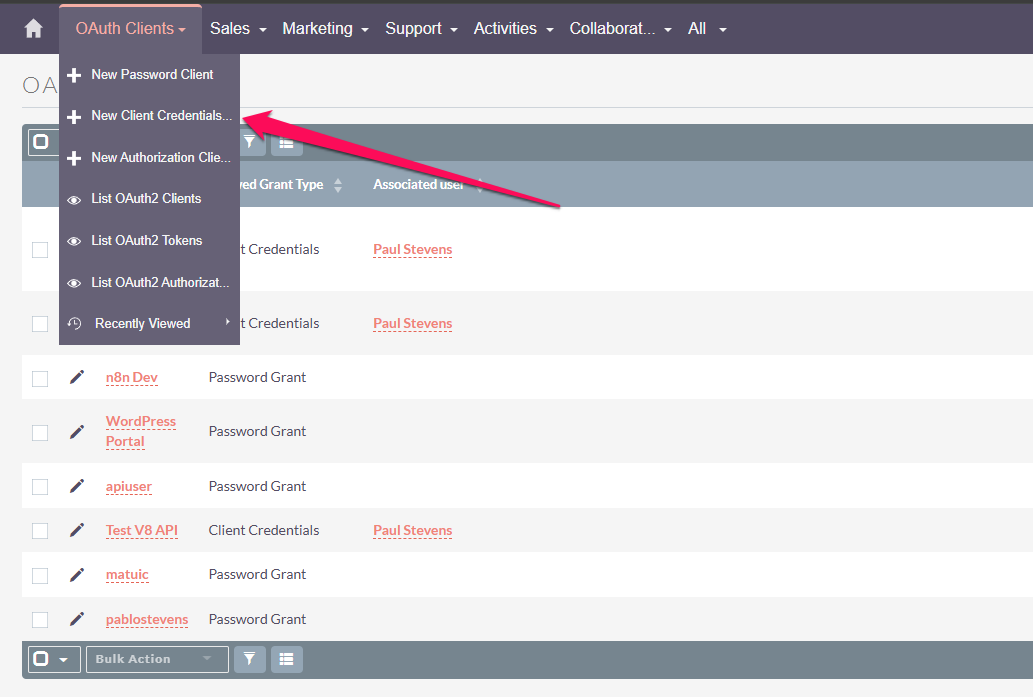
Be careful not to choose a Password Grant client. For integrations that authenticate as a service or application, Client Credentials is generally the appropriate option.
Step 2: Enter a Name
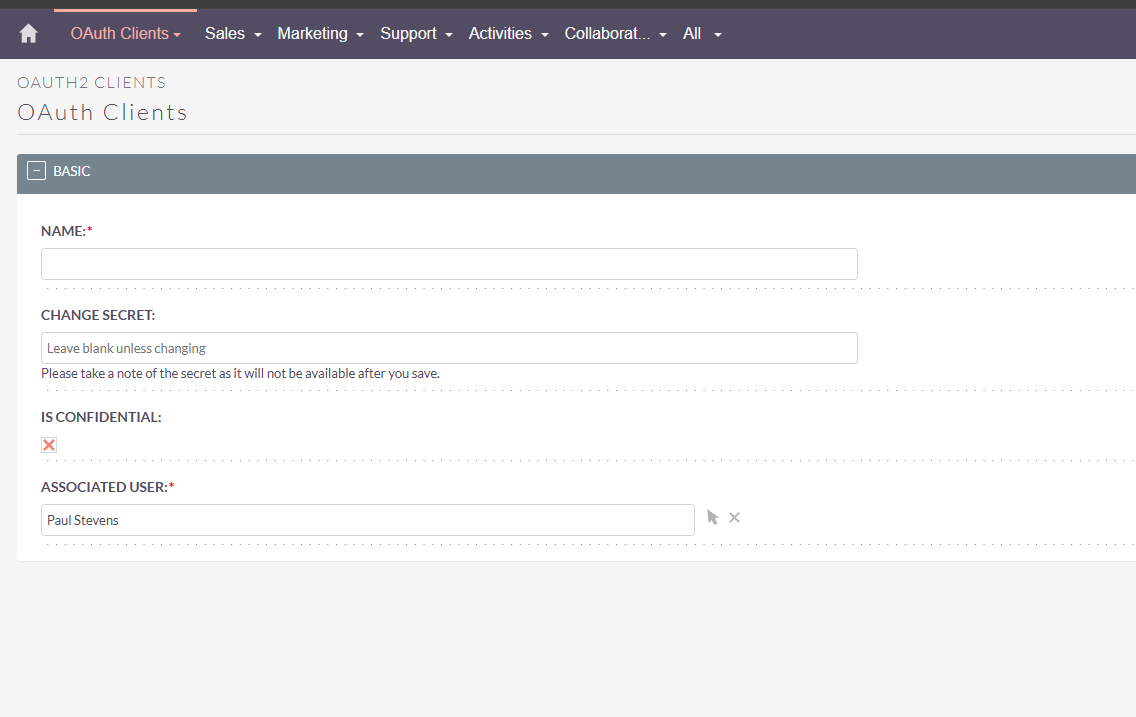
Give the OAuth client a descriptive name.
For example:
CRM Integration
or:
Sales Integration
The name is simply there to help you identify what the OAuth client is being used for later.
Step 3: Create a Client Secret
Enter a strong, unique value in the Secret field.
Treat this secret like a password.
For example, generate a long random value rather than using an easily guessed word or phrase.
SuiteCRM hashes the Client Secret when the record is saved. The original Secret will not be available for you to retrieve later.
Important: Copy the Client Secret somewhere secure before saving the record. You will not see it again.
If you lose it, the normal solution is to replace/reset the secret rather than retrieve the original value.
Step 4: Set the Client as Confidential
For a Client Credentials integration, set:
Is Confidential: Yes
A confidential OAuth client is intended for applications capable of keeping the Client Secret protected.
Step 5: Select the Associated User
Choose the SuiteCRM user that the integration should operate as.
This is an important security decision.
The OAuth client inherits the CRM access available to the associated user. SuiteCRM describes the Associated User as limiting the OAuth client’s CRM access according to that user’s security privileges.
For that reason, I generally recommend creating a dedicated integration user with only the permissions the application actually requires.
For example, if an application only needs to create and search Leads, there is usually no reason to give its associated user full Administrator access.
You may want to consider creating a key for each user. That way, if they leave the company it’s easy to just deactivate their access.
Step 6: Save the OAuth Client
Save the record.
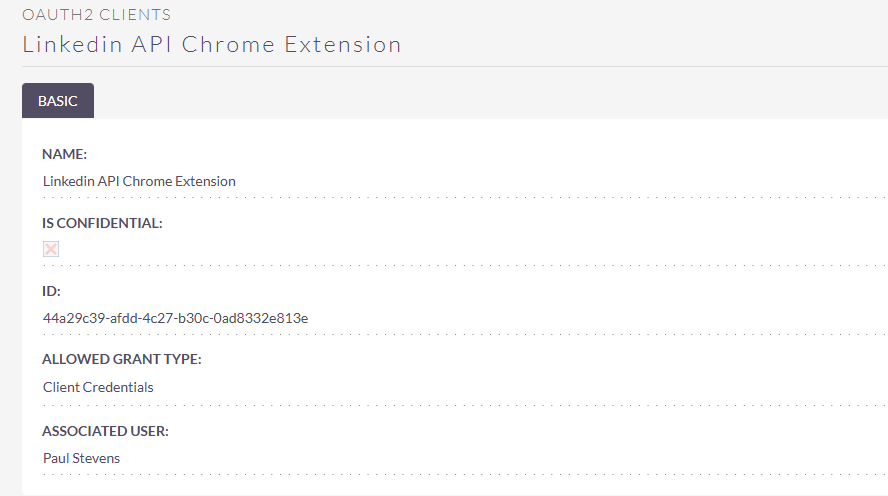
After it has been saved, SuiteCRM generates the OAuth Client ID.
The Client ID is normally displayed as the record’s SuiteCRM GUID.
You now have the two pieces of information needed by an external application:
Client ID
and
Client Secret
The Client ID can be viewed after the record is saved. The Secret is not recoverable in plain text after saving, which is why you should record it securely beforehand.
What Does an Application Need?
An application using Client Credentials authentication will generally require:
SuiteCRM URL
For example:
https://crm.example.comClient ID
The GUID generated by SuiteCRM for the OAuth client.
Client Secret
The secret you entered while creating the OAuth client.
SuiteCRM Version
Some integrations may also need to know whether they are connecting to SuiteCRM 7 or SuiteCRM 8 because the API URL structure can differ.
How Client Credentials Authentication Works
The external application sends the Client ID and Client Secret to SuiteCRM’s OAuth token endpoint using the client_credentials grant type.
SuiteCRM then returns a temporary access token.
That access token is subsequently used to make authenticated API requests.
For SuiteCRM 7, the documented token endpoint is:
/Api/access_tokenSuiteCRM’s official documentation shows a Client Credentials request using:
grant_type: client_credentialsalong with the Client ID and Client Secret.
The integration should treat both the Client Secret and any access tokens as sensitive credentials.
What About public.key and private.key?
If you are configuring the SuiteCRM API itself, you may also encounter references to:
public.key
and
private.key
These are different from the Client ID and Client Secret.
SuiteCRM’s OAuth2 server uses a public/private key pair internally when issuing and validating OAuth tokens. The official API setup documentation places these files under:
Api/V8/OAuth2and documents generating them with OpenSSL.
A typical SuiteCRM installation will already have these configured correctly.
If you are simply creating credentials for an external application, you normally do not need to generate a new public/private key pair. You only need to create an OAuth Client Credentials record through the SuiteCRM administration interface.
Security Recommendations
A few simple practices make OAuth integrations considerably safer:
- Create a dedicated SuiteCRM user for integrations.
- Give that user only the permissions the integration actually needs.
- Generate a strong, unique Client Secret.
- Never email or publish Client Secrets.
- Do not commit Client Secrets to Git repositories.
- Use HTTPS for your SuiteCRM installation.
- Create separate OAuth clients for different applications where practical.
- Revoke credentials that are no longer being used.
If an integration is compromised, having a dedicated OAuth client and restricted SuiteCRM user makes it much easier to revoke access without affecting normal CRM users.
Revoking Access
If you no longer want an application to access SuiteCRM, return to:
Admin → OAuth2 Clients and Tokens
and disable, delete, or replace the appropriate OAuth client credentials.
Because integrations can have their own OAuth client, you can revoke one application’s access without changing a user’s normal SuiteCRM password.
Summary
To create OAuth Client Credentials for a SuiteCRM integration:
- Go to Admin → OAuth2 Clients and Tokens.
- Create a Client Credentials Client.
- Give it a descriptive name.
- Enter and securely record a strong Client Secret.
- Set it as confidential.
- Associate it with an appropriately restricted SuiteCRM user.
- Save the record.
- Copy the generated Client ID.
You can then provide the SuiteCRM URL, Client ID, and Client Secret to the application that needs API access.
This is the approach I recommend for integrations that need to securely connect to SuiteCRM without storing a user’s normal CRM login credentials.
Need help implementing or improving SuiteCRM?
I provide SuiteCRM consulting, customization, implementation, and support services to help businesses get more value from their CRM.